
Showing posts with label Windows. Show all posts

Saturday, May 17, 2014

Fix Error Does Not Use Liquify (Ctrl + Shilft + X) In CS5-CS6-CC with Laptops use graphic card (ATI driver )

Liquify photoshop

• Almost all laptop cannot use LIQUIFY, especially laptop use ATI graphic card. Some PC do not use removable card also are similar error, you should uninstall and reinstall PTS
( before installing, i recommend you turn off the antivirus soft - windows defender)
YOU MAKE SURE THAT YOUR COMPUTER HAS INSTALLED CORRECT DRIVER FOR YOUR OPERATING SYSTEM (NOTE: DRIVER FOR 32 BIT AND 64 BIT OS)
• Step 1:
1.1. From main interface, pressing Ctrl + K to open the interface Preferences.
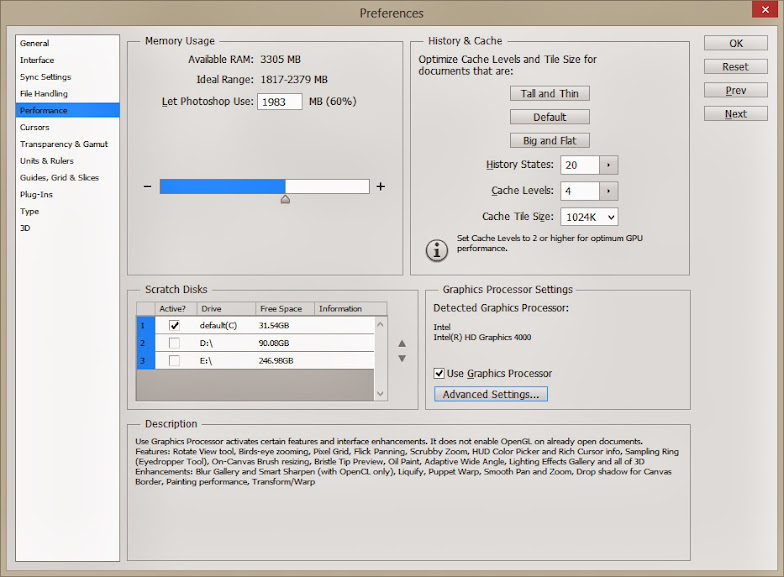
preference interface of photoshop to option

1.2. From the left panel of Preferences window select Perfomance
1.3. uncheck  box "Use Graphic Processor"
1.4. Restart PTS ---> Open any photo and try to use LIQUIFY (Ctrl + Shilft + X)
IF STEP 1 DOES NOT SUCCESS, YOU BACK TO STEP 1 (SECTION 1.3) CHECK "Use Graphic Processor" AND GO TO STEP 2.
Step 2.

2.1. Right click on Desktop screen select Configure Switchable Graphics

This is the category for activity conversion between VGA removable and VGA onboard for Laptops to  save power battery and durability for the Card. For the softs does not need to process in high level graphics then it will switch back to normal mode or using the onboard VGA automatically.


r-click desktop adjust graphic, resolution, high process to run application


2.2. The Catlyst control Center window appears, you click Select Recent Applications .
- In the section photoshop.exe, you select Grapichs Settings is "Based on Power Source" .
2.3. Click Apply to close the window. Restart PTS and used.


Translate from khiempro's post <vietdesigner.net>

Thursday, May 15, 2014

Share files between Windows and Ubuntu easily by using Samba, workgroup


In a network environment of a domain or workgroup, each machine can access content from other computer through Windows Explorer when filesharing is enabled. In windows, this is very easy. File sharing is the most effective way to distribute and manage the content between the
separate systems. When filesharing is enabled on all Windows computers that share the same network, each person will be able to view the contents of other computer such as video, music and pictures easily

But if you have a mixed environment between Windows computer and Ubuntu. This will still be able to share file between Windows and Ubuntu computer.

• When you add or join the computer Windows and Ubuntu on the same domain or workgroup and allows to share, each computer will be able to access content with each other as they are both Windows computers.

To make this job, then you should set both into the same workgroup. If Windows had a workgroup name, then let you change the workgroup name of Ubuntu match the  workgroup name of Windows.
 
To find out your workgroup name of Windows, run the following command from the command window.
 

To find out your name workgroup of Windows, run the following command from the command window

 • The value for the domain Workstation is the workgroup name. By default it is called WORKGROUP. Next, log on to Ubuntu computer and install Samba.
The value for the domain Workstation is the workgroup name. By default it is called WORKGROUP. Next, log on to Ubuntu computer and install Samba

After installing Samba, open the Unity Dash and search for Samba, then click it to open it. When it opened, click  Preferences-> Server Settings and set the workgroup name to match the Windows workgroup.

open the Unity Dash and search for Samba, then click it to open it. When it opened, click  Preferences

• When done, save it and reboot both computer. If filesharing is enabled in Windows, you will be able to see two computer from one in  two systems.
filesharing is enabled in Windows, you will be able to see two computer from one in  two systems

Both computer can see each other but you need content to access. If there isn't a content be shared, you will be unable to access or view the files and folders.

If filesharing isn't enabled in Windows and you can not see the Windows computer, run the following command to enable file sharing in Windows.

filesharing isn't enabled in Windows and you can not see the Windows computer

Translate from thangcohut's post <vn-zoom.com>

Learn what applications to slow down your internet connection by using TCPview software


• Sometimes you may detect that your internet connection is being used in the background, and don’t know what application is using it. I will show you how to supervise and manage the internet connection.
• For this, you need to download the program TCPView, a software absolutely free. Download at ►Here◄ .
The program doesn’t require installation .You only need unzip it to folder and run file Tcpview.exe .
Some minor adjustments:
• In the View menu, select Update Speed and set  one second to refresh the list per a second.
Using TCPview software, monitor display to adjust your internet slow down

In the Options menu:

• Resolve Addresses:  Allow you see the name of the remote host to which you are connecting  is not its IP.
Show Unconnected Endpoints: also showed active connections. Because we are focusing on the connections that actually use the bandwidth. you should deselect this option.
• The window Always On Top allows TCPView always above others.
• Font allows you to change the font of your application.

How to use it:
When you right click on a connection.

 • Close connection: close connection is selected, and processes depend on them. If you see an unknow using  application and misuse of your connection, this option will be disconnected immediately. (However note it may reconnect immediately, or later).

• End Process:  it closes  the program’s connect , instead of just disconnecting it as happening in the previous option.
Process Proprieties shows the location of the program on your hard drive by using the connection.

Color:
• The connection have been created only show by green
• The connection that changed the server or gateway is show by yellow
• The connection is closed is shown by red.

List of connection  being using your network and make slow down internet


To find the culprit:


• From the list of processes, click Rcvd Bytes to sort it in descending order. This column represents the number of bytes of the corresponding process has been downloaded. The column Sent Bytes and Packets Rcvd column will also help you identify the culprit of your applications. To reject an application from the continued use of your internet connection, right-click on the specific process and choose End Process.


List of process with PID protocol packet byte send and receive

• You can also use TCPView to hunt down unwanted programs, malware, spyware by analyzing processes and corresponding bytes are converted.
Translate from thangcohut's post  <vn-zoom.com>


Copyright @ 2014 Guide and share anything relate to Information Technology.

Template by Templateism | MyBloggerLab